User Instructions
Registration
Please visit the Registration Link that you were provided.
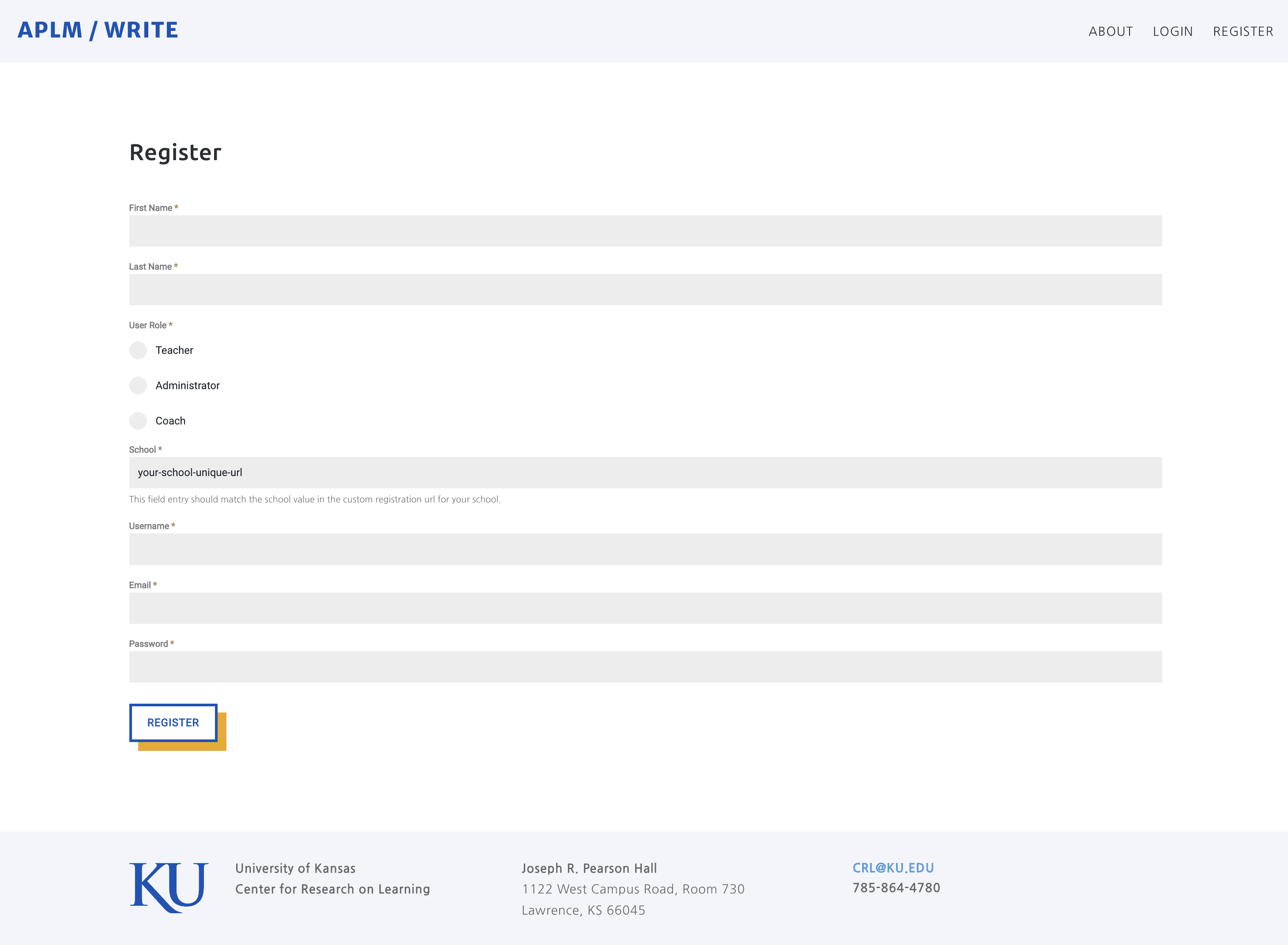
Then fill out all fields. The School field should already be filled in and is not editable (if the school field is not filled in or does not match your school, please check your Registration Link.
Note: the Username field can not be changed in the future and is only used to login.
After filling out the Registration form click the Register button.

If there are no errors with your Registration you will see a “Submitting” message followed by the message that “Account registration successful. Click here to login to your account”.
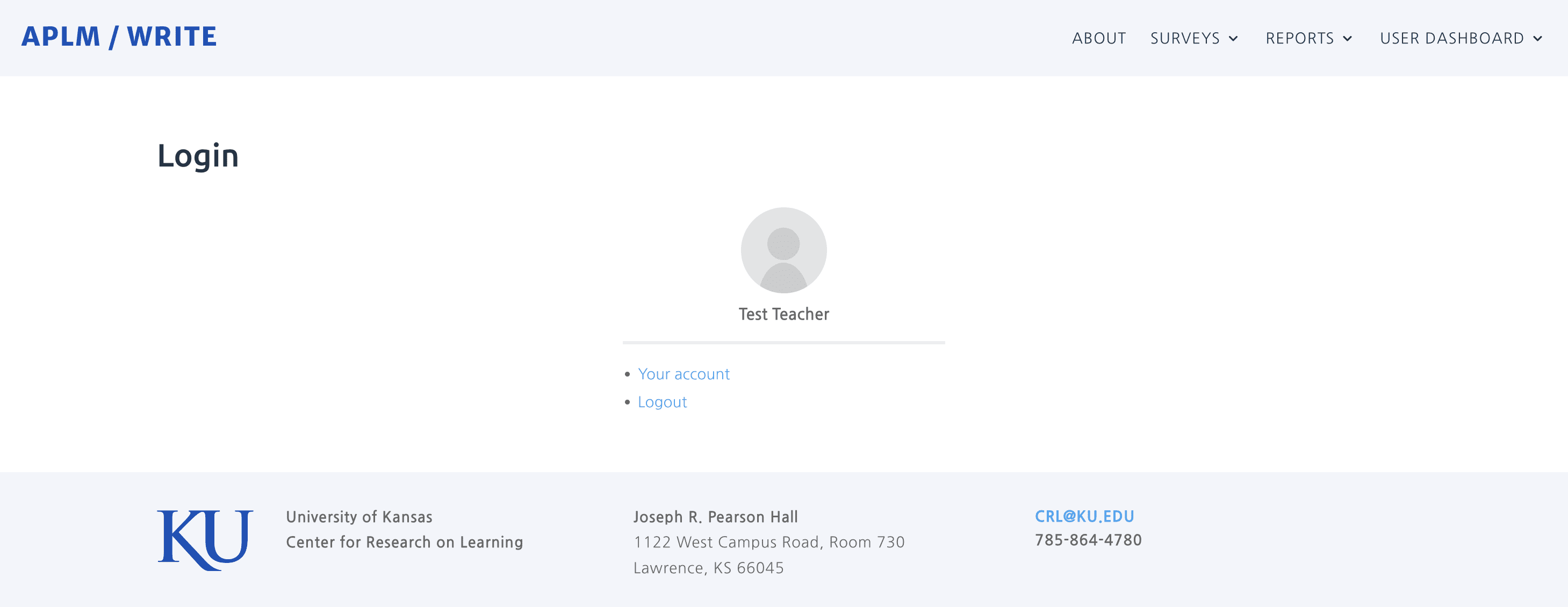
Note: this system is currently set to log you in automatically after a successful registration and if you continue to the Login screen, you will see your entered name and links for more account options and to Logout.
You can also click the APLM / WRITE top left link to go directly to the Home page.
Once you click away from the Registration page, you should see the main menu (top right) update to show you the options for logged-in users.

Login
To Login in the future. You can visit the main Login page here or use the login form on the home page.
After you login, you will be re-directed to the Home page.

Menu
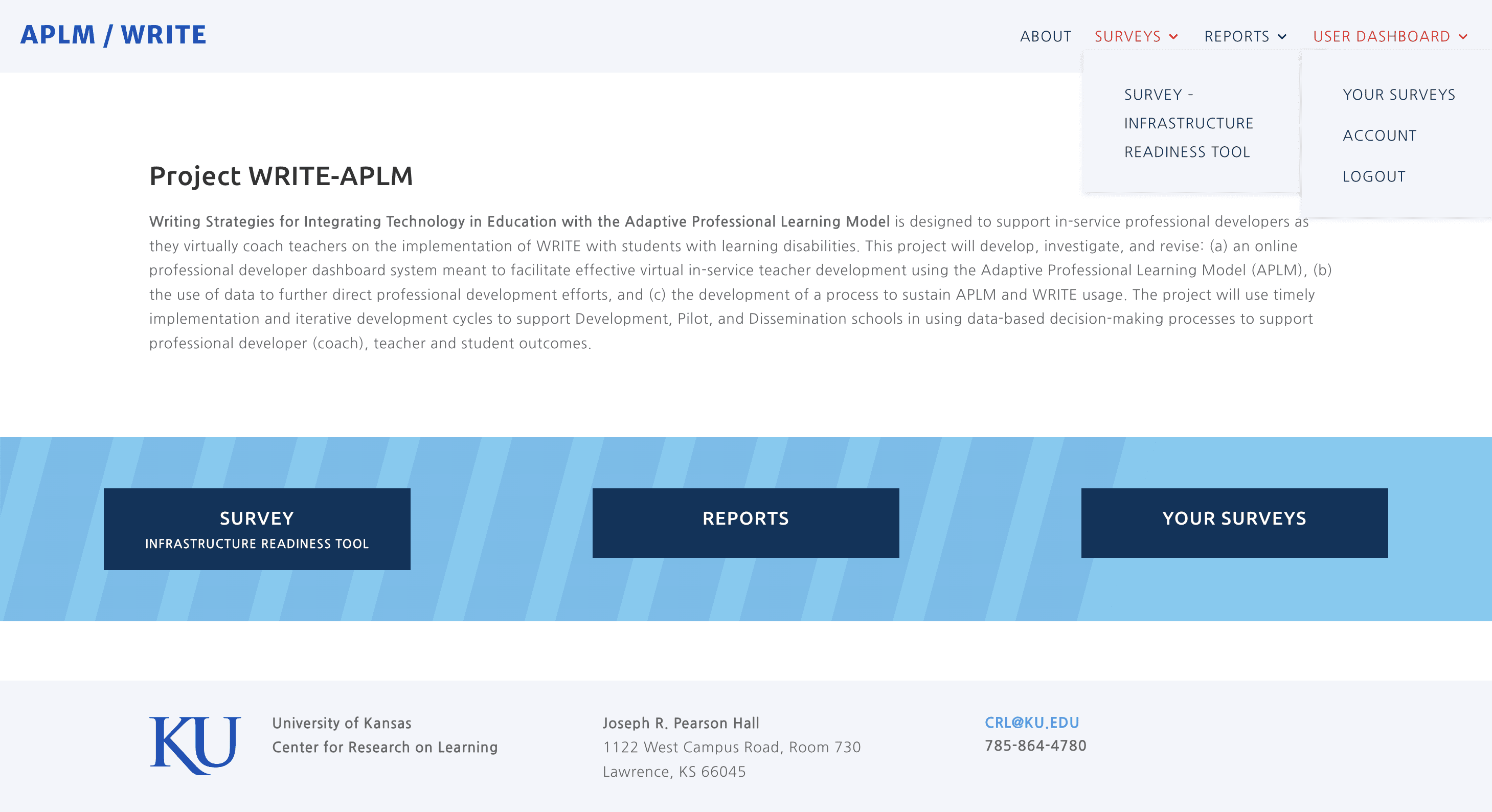
Once logged in your will see the menu for logged-in users. In the drop-downs for these menu items you will find links to the Infrastructure Readiness Tool Survey, a link to view and change your account information, to logout, and to view Your Surveys that have been completed. There are also quick link buttons in the body of the Home page.
Survey
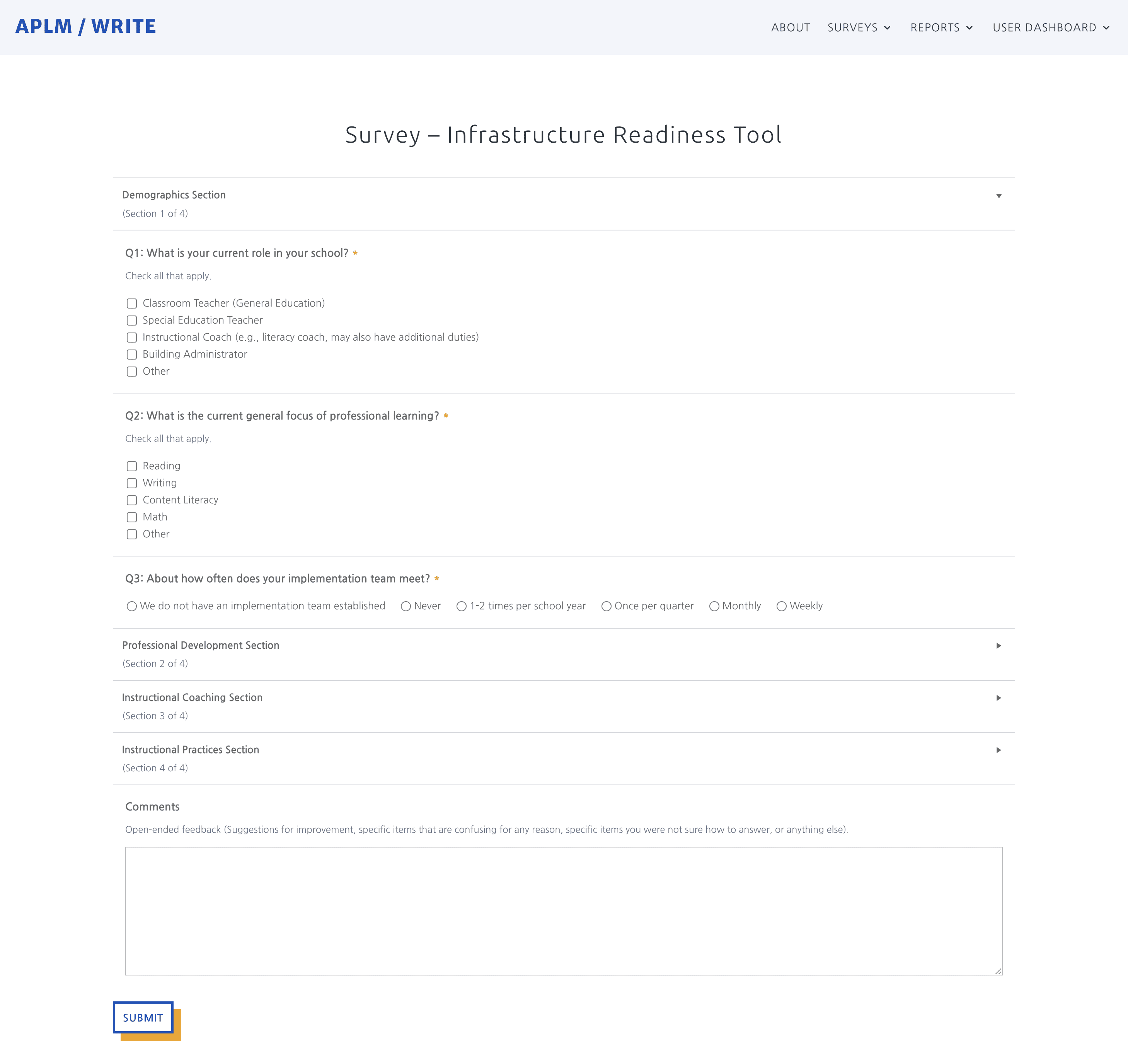
There are multiple sections for the survey that can be opened by clicking the section heading. All fields are required except the Comment section at the bottom of the survey.
After you complete the survey, click the Submit button to save your survey. If all required fields are not completed, you will be alerted that fields are not completed with notices for each field.
Once the submission of your survey has been completed and saved, you can review your survey(s) by visiting the Your Surveys page found under the User Dashboard drop-down menu.
Your Surveys
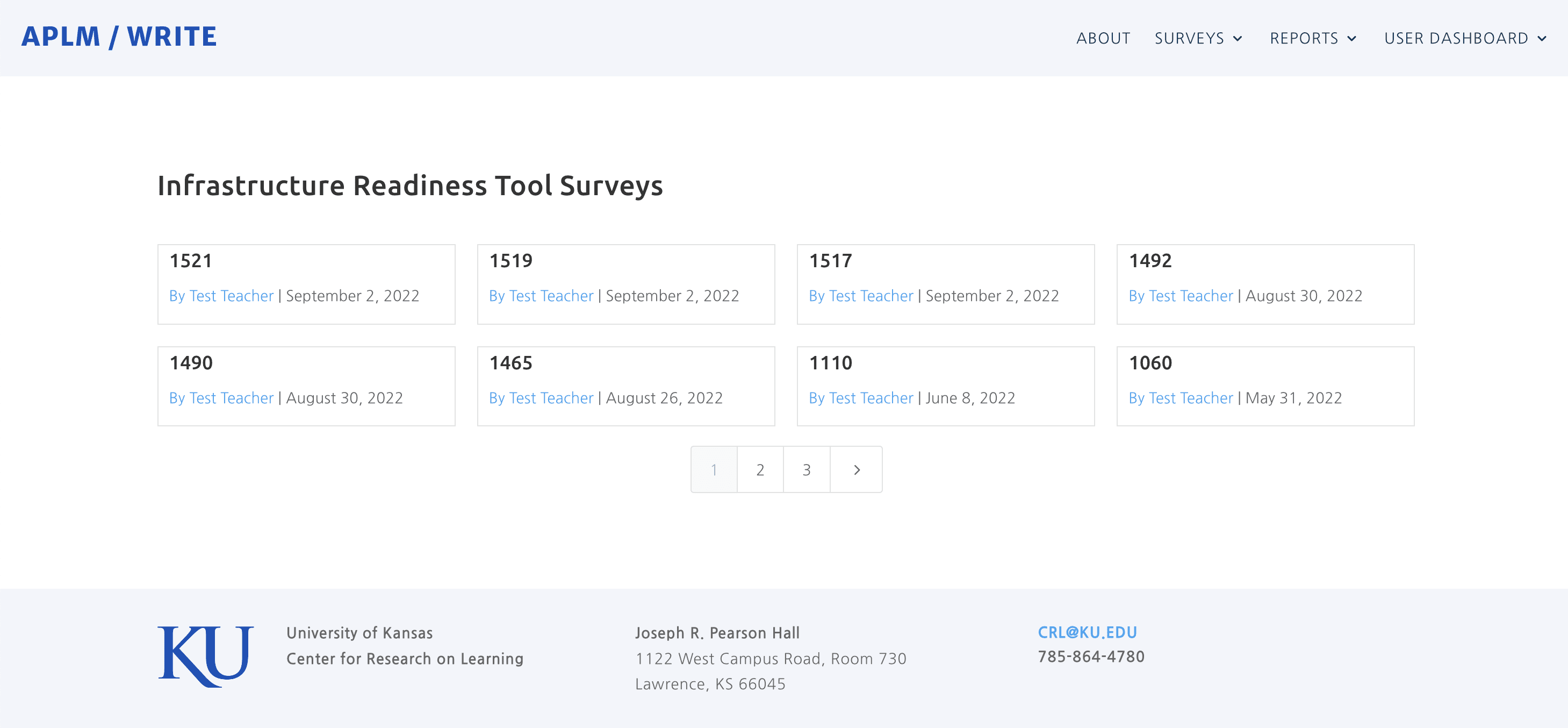
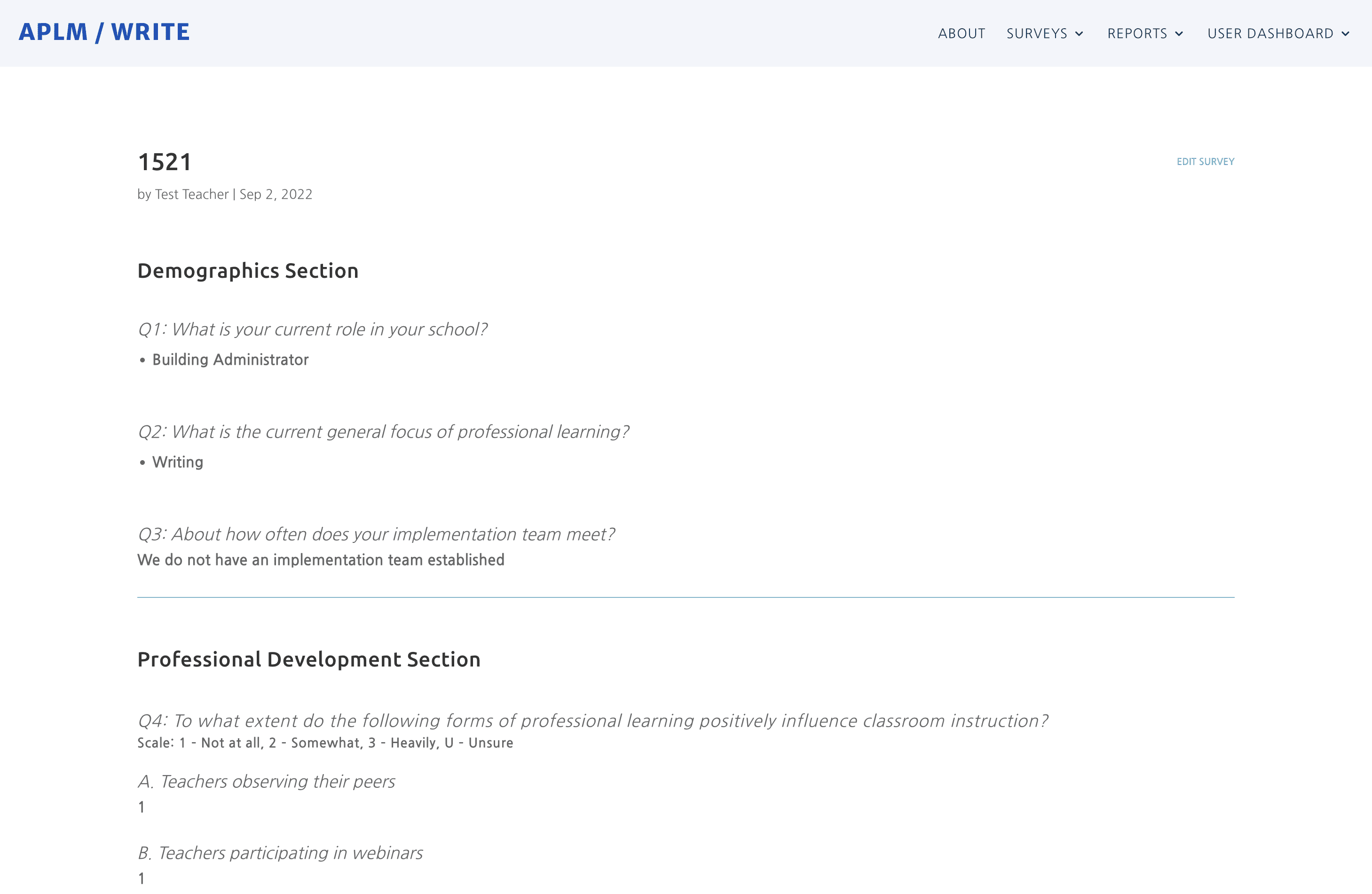
On the Your Surveys page you will find a listing of all the surveys that you have completed. You can click on any existing survey to view what has been entered.
You will also see the Edit Survey link. You can click this link to edit this specific survey which will open into a new survey form. You can then update your survey and then click the Submit button to save your changes.